LESSON 5. IAM Configuration: users, groups, and security
DESCRIPTION
IAM (Identity and Access Management) is AWS service for managing access to resources. Proper IAM configuration is critical for account security. In this lesson we will set up users, groups, access policies, and multi-factor authentication.
WHAT YOU WILL LEARN
What IAM is and why it matters
Difference between Root user and IAM users
How to create users and groups
How to assign permissions through policies
Password policy configuration
Enabling MFA for account protection
WHAT IS IAM
IAM (Identity and Access Management) is a free AWS service for managing:
– Users
– Groups
– Roles
– Access Policies
KEY CONCEPTS
ROOT USER
Account created during AWS registration
Has full access to all resources
Tied to email and credit card
Should NOT be used for daily work
Used only for critical tasks
IAM USER
Additional users created in IAM
Have limited access rights
Can have console password
Can have Access Keys for programmatic access
Used for daily work
IAM GROUP
Collection of IAM users
Simplifies permission management
Policies assigned to group, not each user
IAM POLICY
JSON document defining access rights
Can be assigned to user, group, or role
AWS provides ready-made managed policies
IAM ROLE
Temporary identity for AWS services
Has no permanent credentials
Used by services to access other services
ACCESSING IAM SERVICE
Log into AWS Management Console
In search bar type “IAM”
Or find in Services menu under Security, Identity & Compliance
Click “IAM”
IAM DASHBOARD
After entering IAM you will see Dashboard with security recommendations:
Security recommendations:
1. Add MFA for root user
2. Create individual IAM users
3. Use groups to assign permissions
4. Apply IAM password policy
5. Enable CloudTrail
CONFIGURING CUSTOM SIGN-IN URL
Default URL for IAM user sign-in:
https://YOUR-ACCOUNT-ID.signin.aws.amazon.com/console
You can create readable alias.
HOW TO CREATE ALIAS
In IAM Dashboard find “AWS Account”
Click “Create account alias”
Enter unique name (e.g.: adv-it, mycompany-aws)
Name must be globally unique
Click “Create alias”
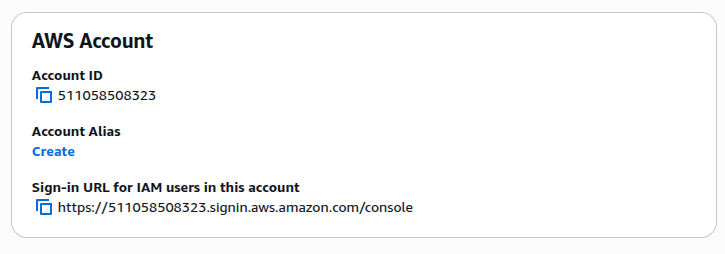
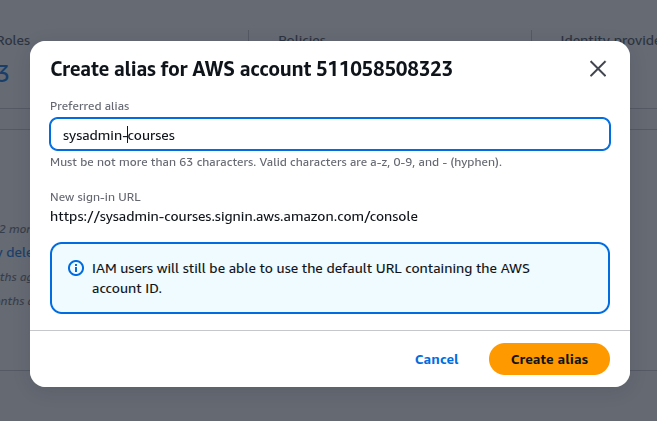
New URL will be:
https://your-alias.signin.aws.amazon.com/console
This URL can be given to employees for AWS console access.
CONFIGURING PASSWORD POLICY
Password policy defines requirements for IAM user passwords.
HOW TO CONFIGURE PASSWORD POLICY
In IAM Dashboard select “Account settings”
Click “Edit” in “Password policy” section
RECOMMENDED SETTINGS
Minimum password length: 12 characters (minimum)
Require at least one uppercase letter
Require at least one lowercase letter
Require at least one number
Require at least one non-alphanumeric character
Enable password expiration: 90 days
Password expiration requires administrator reset: Disable
Allow users to change their own password: Enable
Prevent password reuse: Remember last 5 passwords
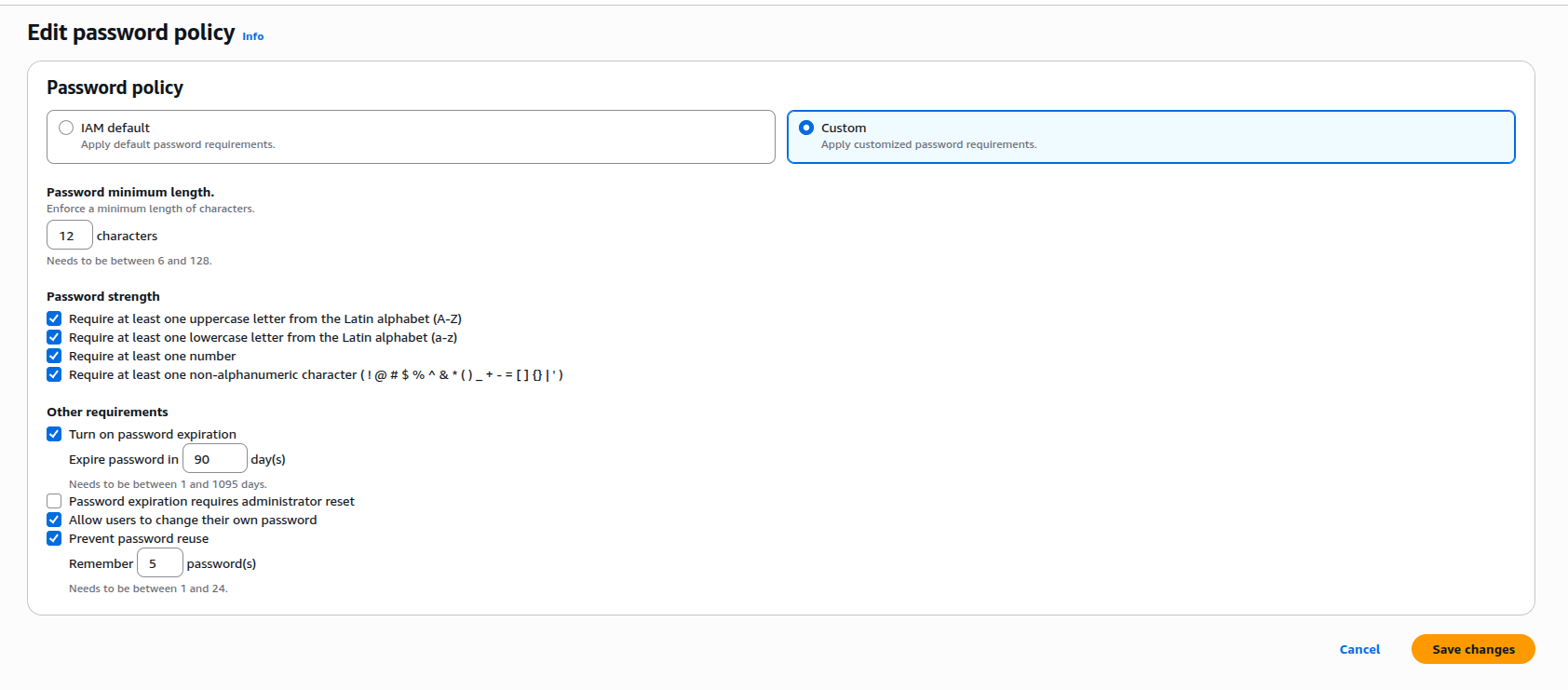
Click “Save changes”
CREATING IAM USERS
Let’s create two administrators and two developers.
STEP 1: CREATING FIRST USERS
In IAM select “Users” in left menu
Click “Create user”
Create user admin1:
User name: admin1
Select access type:
Provide user access to the AWS Management Console
I want to create an IAM user
Custom password: Enter password (e.g.: MyPassword123!)
Users must create a new password at next sign-in: Check
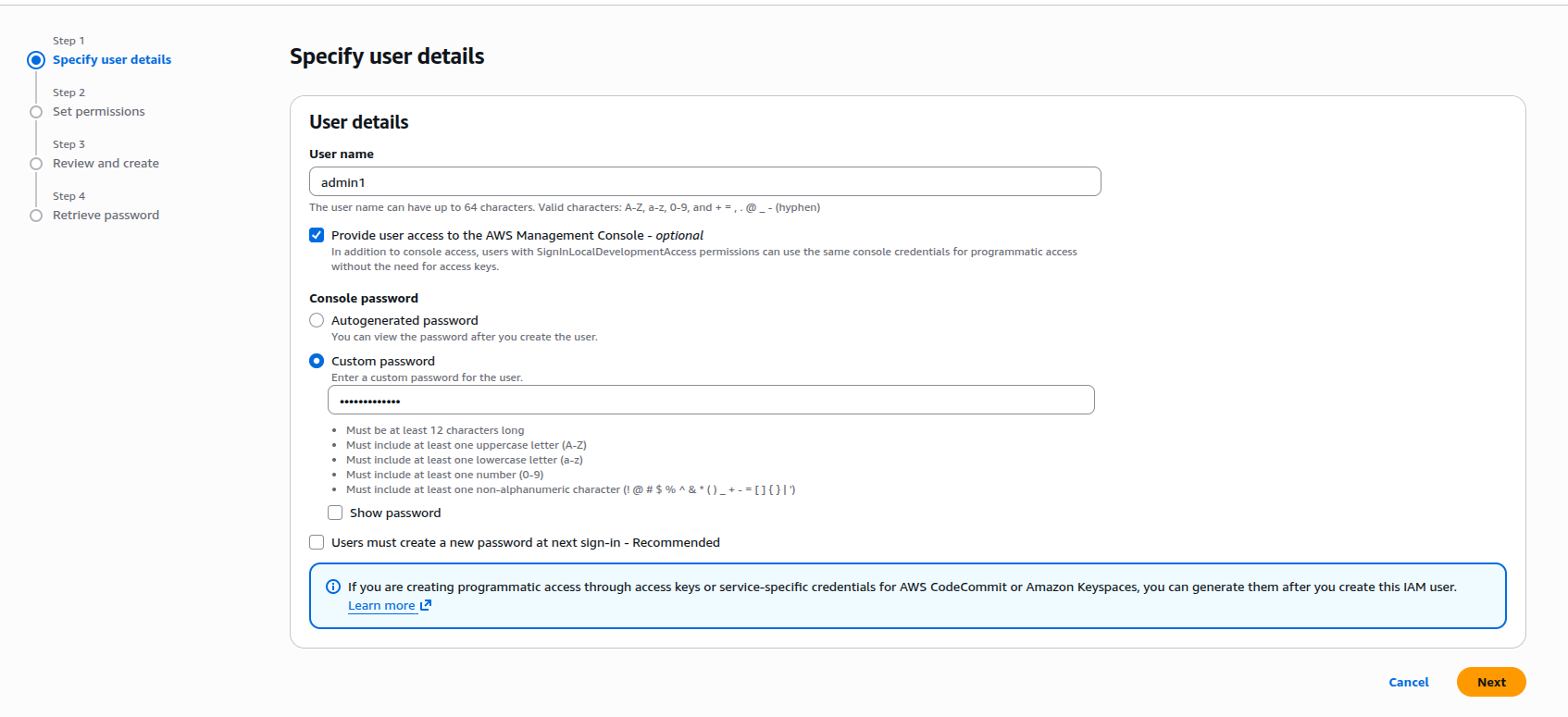
Click “Next”
STEP 2: CREATING ADMINISTRATORS GROUP
Select “Add user to group”
Click “Create group”
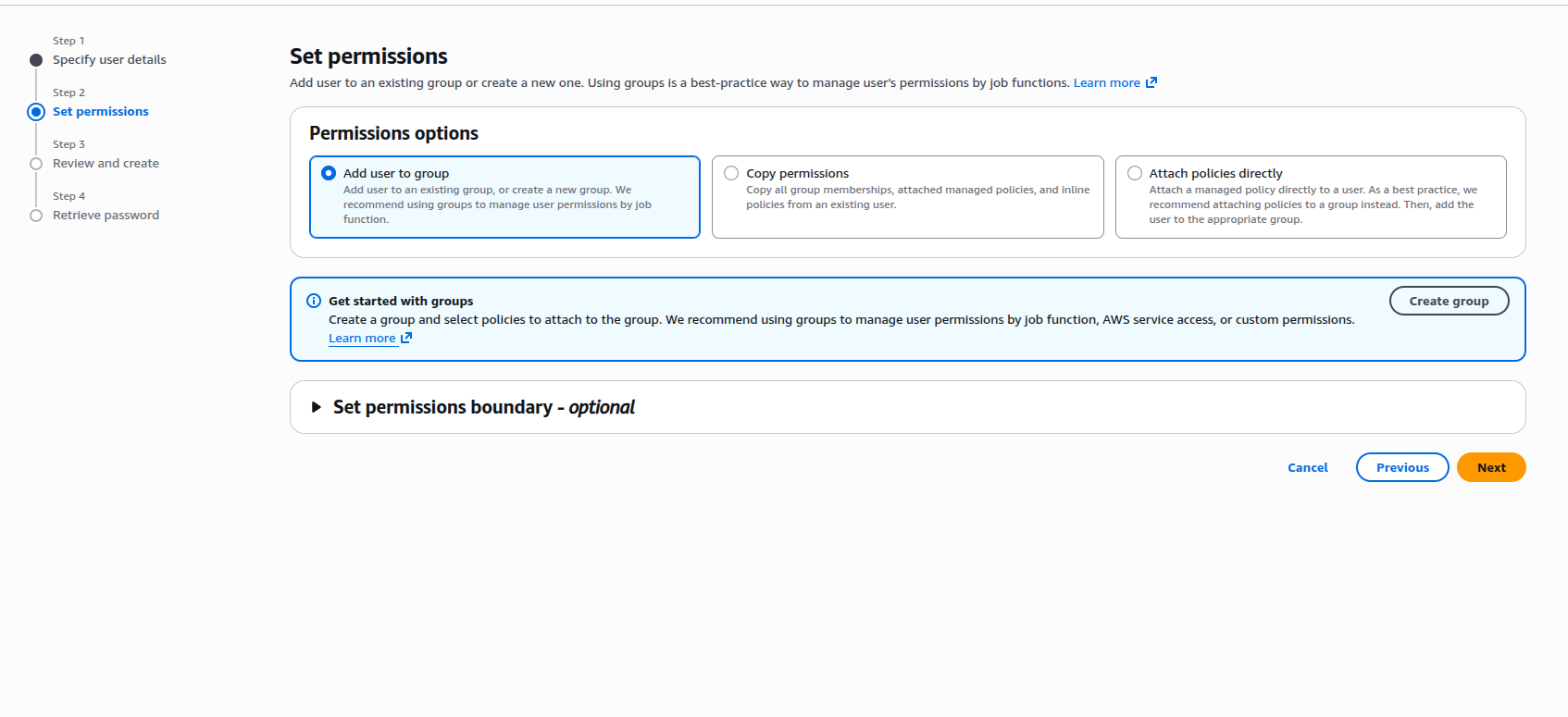
Group name: Administrators
Select policy: AdministratorAccess
AdministratorAccess description:
Provides full access to AWS services and resources
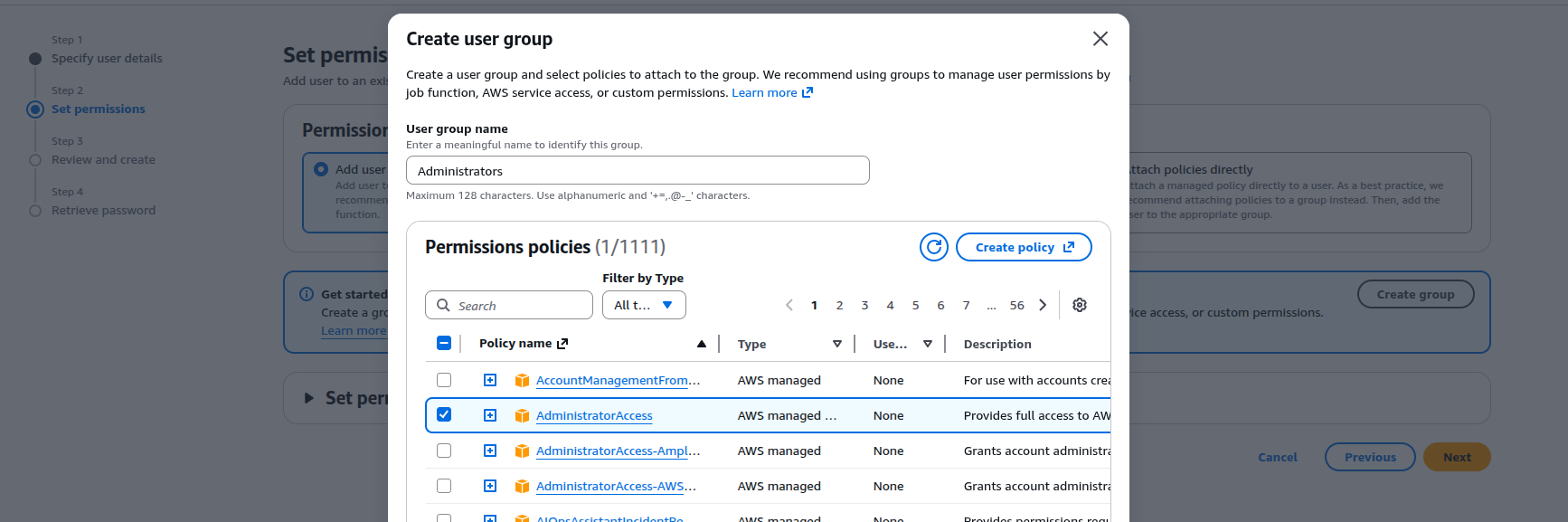
Click “Create user group”
Select “Administrators” group
Click “Next”
Review and “Create user”
STEP 3: CREATING SECOND ADMINISTRATOR
Repeat process for admin2
Add to Administrators group
USER INFORMATION
After creation you will see:
Console sign-in URL: https://your-alias.signin.aws.amazon.com/console
User name: admin1
Console password: specified password
Important: Save this information or send to user
CREATING DEVELOPERS GROUP
STEP 1: CREATING GROUP
In IAM select “User groups”
Click “Create group”
Group name: Developers
STEP 2: SELECTING POLICIES
For developers you can select several policies:
Basic access:
PowerUserAccess – full access except IAM and Organizations
Or selective policies:
AmazonEC2FullAccess – full EC2 access
AmazonS3FullAccess – full S3 access
AmazonRDSFullAccess – full RDS access
AWSCodeCommitFullAccess – full CodeCommit access
For example select AmazonEC2FullAccess
Click “Create group”
STEP 3: CREATING DEVELOPERS
Create user developer1:
User name: developer1
Console access: Enable
Custom password: DevPass123!
Require password change: Enable
Add to group: Developers
Create developer2 similarly

PROGRAMMATIC ACCESS (ACCESS KEYS)
WHAT IS ACCESS KEY
Access Key is a pair of secret keys that allow programs to work with AWS on behalf of a user.
Consists of two parts:
Access Key ID – public part (e.g.: AKIAIOSFODNN7EXAMPLE)
Secret Access Key – secret part (e.g.: wJalrXUtnFEMI/K7MDENG/bPxRfiCYEXAMPLEKEY)
WHAT THEY ARE FOR
Without Access Keys you cannot use:
AWS CLI – manage AWS through command line
AWS SDK – write programs that work with AWS (Python, JavaScript, Java, etc.)
AWS API – direct HTTP requests to AWS
For example:
You write a Python script that creates EC2 instances
You want to manage S3 through terminal
You configure CI/CD pipeline for automatic deployment
IMPORTANT TO UNDERSTAND
One Access Key works for everything: CLI, SDK, API
You can create up to 2 Access Keys per user
Access Keys = password for programs (keep secret!)
HOW TO CREATE ACCESS KEY
Go to user (e.g., developer1)
Select “Security credentials” tab
Click “Create access key”
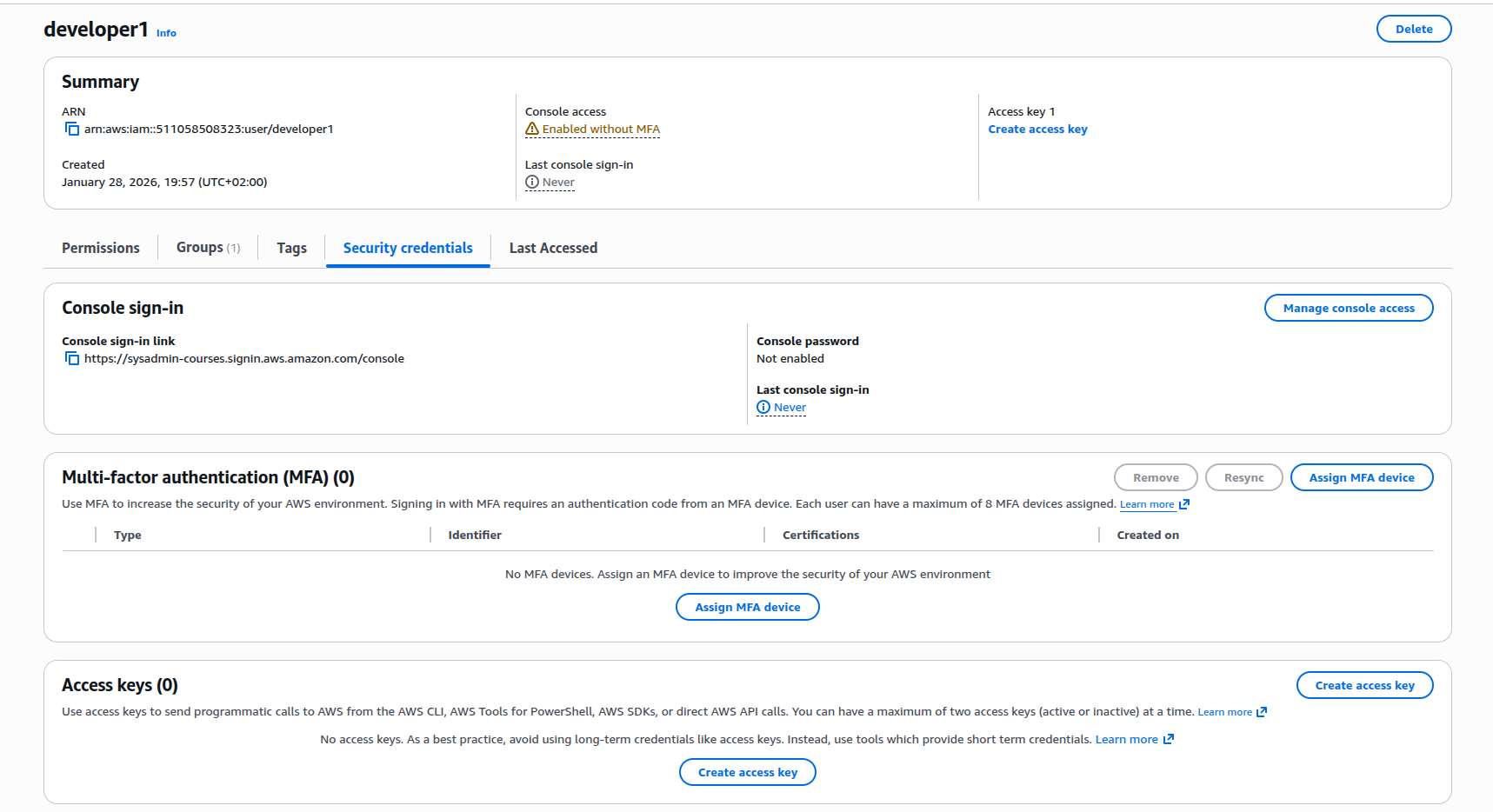
AWS will ask: what do you plan to use this key for?
Select ONE primary use case:
Command Line Interface (CLI)
For working with AWS through terminal with commands like: aws s3 ls
Local code
For local application development on your computer
Application running on an AWS compute service
For applications running on EC2 or Lambda
(Warning: for EC2/Lambda better to use IAM Roles, not Access Keys!)
Third-party service
For third-party services that need access to your AWS
Application running outside AWS
For applications running in another cloud or on your own servers
Other
Other use cases
FOR LEARNING SELECT: Command Line Interface (CLI)
IMPORTANT TO KNOW
Use case selection is just a marker for AWS statistics
AWS wants to understand how keys are used
Selection DOES NOT LIMIT key usage
After creation, key works everywhere: CLI, SDK, API simultaneously
Example: selected “CLI”, but same key works fine in Python code
Check: “I understand the above recommendation”
Click “Next”
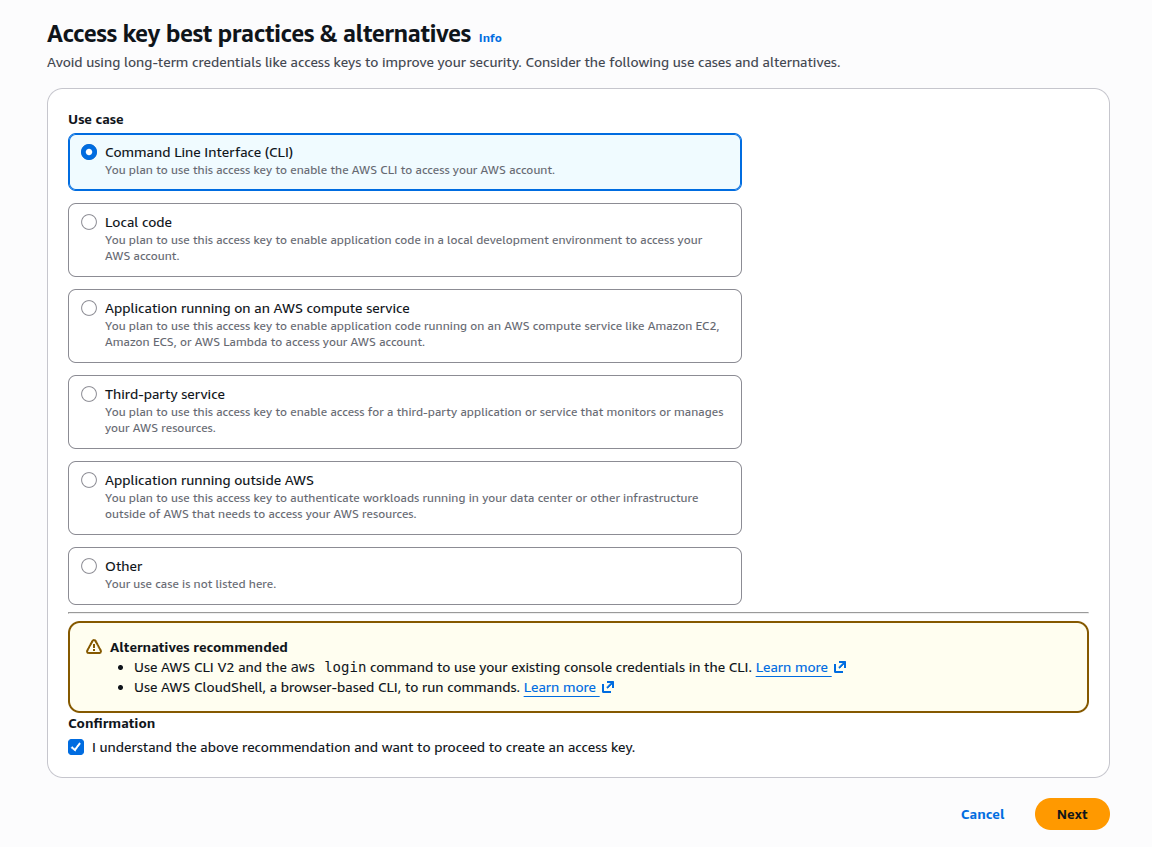
Description tag: CLI access for development
Click “Create access key”
IMPORTANT: ACCESS KEY SECURITY
You will see:
Access key ID: AKIAIOSFODNN7EXAMPLE
Secret access key: wJalrXUtnFEMI/K7MDENG/bPxRfiCYEXAMPLEKEY
CRITICALLY IMPORTANT:
Secret access key shown only once
Download .csv file with keys
Never publish keys in code or GitHub
Regularly rotate keys
Delete unused keys
ACCESS TYPES
CONSOLE ACCESS
Access through AWS Management Console web interface
Requires username and password
Protected by MFA
PROGRAMMATIC ACCESS
Access through AWS CLI, SDK, API
Requires Access Key ID and Secret Access Key
Used in code and scripts
COMBINED ACCESS
User can have both access types simultaneously
CONFIGURING MFA (MULTI-FACTOR AUTHENTICATION)
MFA adds additional security layer – requires not only password but also temporary code.
MFA TYPES IN AWS
1. AUTHENTICATOR APP (Virtual MFA)
Google Authenticator
Microsoft Authenticator
Authy
1Password
Free
2. FIDO SECURITY KEY
Yubikey
Physical USB key
Around $20-50
3. HARDWARE TOKEN
Gemalto token
Physical device
Around $100+
Recommend: Authenticator App (free and convenient)
ENABLING MFA FOR ROOT USER
In IAM Dashboard find “Add MFA for root user”
Click “Add MFA”
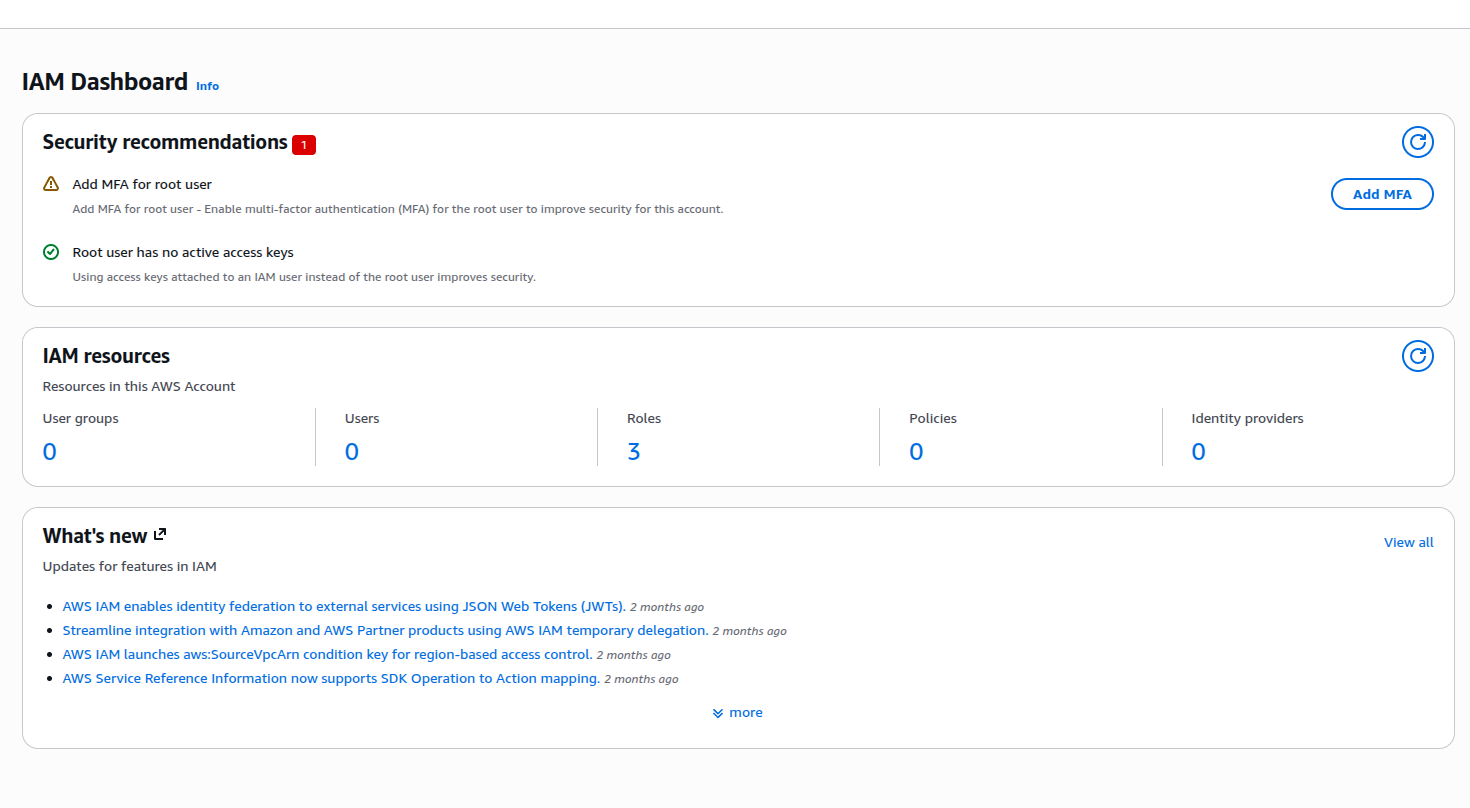
You will be redirected to Account Settings
Click “Assign MFA device”
MFA device name: root-account-mfa
Select: Authenticator app
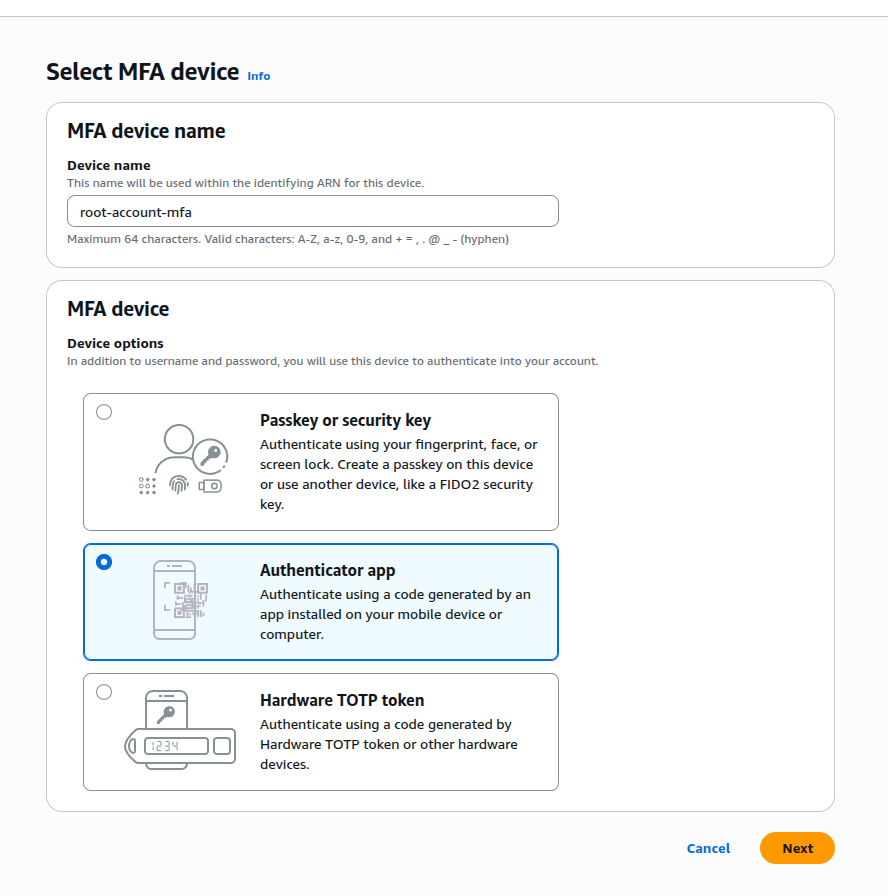
Click “Next”
INSTALLING AUTHENTICATOR APP
On phone install one of apps:
Android: Google Authenticator, Microsoft Authenticator, Authy
iOS: Google Authenticator, Microsoft Authenticator, Authy
Open app
Click “+” or “Add account”
Select “Scan QR code”
In AWS console click “Show QR code”
Scan QR code with phone camera
In app AWS account will appear with 6-digit code
Code changes every 30 seconds
ENTERING MFA CODES
In AWS console enter:
MFA code 1: current code (e.g.: 377428)
Wait 30 seconds for new code
MFA code 2: new code (e.g.: 295546)
Click “Add MFA”
Done – MFA activated for root account
ENABLING MFA FOR IAM USER
Go to IAM Users
Select user (e.g., admin1)
Go to “Security credentials” tab
In “Multi-factor authentication (MFA)” section click “Assign MFA device”
Repeat process:
Device name: admin1-mfa
Device type: Authenticator app
Scan QR code
Enter two sequential codes
SIGNING IN WITH MFA
After enabling MFA sign-in process:
1. Open https://your-alias.signin.aws.amazon.com/console
2. Enter username and password
3. MFA code request appears
4. Open Authenticator app
5. Enter current 6-digit code
6. Click “Submit”
AWS MANAGED POLICIES
AWS provides ready-made policies for typical roles:
ADMINISTRATIVE
AdministratorAccess – full access to everything
PowerUserAccess – full access except IAM
SERVICE SPECIFIC
AmazonEC2FullAccess – full EC2 access
AmazonS3ReadOnlyAccess – S3 read only
AmazonRDSFullAccess – full RDS access
BILLING
Billing – billing information access
JOB FUNCTIONS
DatabaseAdministrator
DataScientist
NetworkAdministrator
SystemAdministrator
SupportUser
CUSTOM POLICIES
You can create custom policies in JSON format.
POLICY EXAMPLE
{
“Version”: “2012-10-17”,
“Statement”: [
{
“Effect”: “Allow”,
“Action”: [
“ec2:StartInstances”,
“ec2:StopInstances”
],
“Resource”: “*”
}
]
}
This policy allows only starting and stopping EC2 instances.
IAM BEST PRACTICES
PRINCIPLE OF LEAST PRIVILEGE
Give minimum necessary permissions
Start with minimum, add as needed
Regularly review and reduce permissions
USE GROUPS
Don’t assign policies directly to users
Create groups and add users to groups
Simplifies management
ENABLE MFA
Mandatory for root account
Mandatory for all admin users
Desirable for all users
ROTATE CREDENTIALS
Regularly change passwords (every 90 days)
Rotate Access Keys (every 90 days)
Delete unused credentials
DON’T USE ROOT
Create admin IAM user
Use it for daily work
Root only for critical tasks
MONITORING
Enable CloudTrail for logging all actions
Configure alerts for suspicious activity
Regularly check Access Advisor
TAGS
Use tags to organize resources
Simplifies billing and management
PRACTICAL STRUCTURE EXAMPLE
GROUPS AND POLICIES
Administrators group:
Policy: AdministratorAccess
Users: admin1, admin2
Developers group:
Policies:
AmazonEC2FullAccess
AmazonS3FullAccess
AmazonRDSFullAccess
Users: developer1, developer2
ReadOnly group:
Policy: ReadOnlyAccess
Users: analyst1, manager1
Billing group:
Policy: Billing
Users: finance1
ORGANIZATION STRUCTURE
Root Account (only for critical tasks)
Admin Users (daily administration)
Developer Users (development and testing)
ReadOnly Users (viewing and monitoring)
CHECKING SETTINGS
After completing setup IAM Dashboard should show green checkmarks:
Add MFA for root user: Green checkmark
Create individual IAM users: Green checkmark
Use groups to assign permissions: Green checkmark
Apply an IAM password policy: Green checkmark
TESTING ACCESS
TEST 1: SIGN IN AS IAM USER
Open private browser window
Go to: https://your-alias.signin.aws.amazon.com/console
Enter: admin1 / password
System will ask to change password
Enter new password
If MFA enabled – enter code
TEST 2: CHECK PERMISSIONS
After signing in as admin1:
Try creating EC2 instance – should work
Try accessing IAM – should work
Try accessing Billing – should work
After signing in as developer1:
Try creating EC2 – should work (if given permissions)
Try changing IAM – should NOT work
Try accessing Billing – should NOT work
IMPORTANT TO KNOW
IAM IS GLOBAL
IAM not tied to regions
Users available in all regions
Policies apply globally
IAM IS FREE
IAM service completely free
No limits on users
No limits on groups
CREDENTIALS REPORT
IAM provides Credential Report
Shows all users and credentials status
Useful for security audits
Download: IAM > Credential report > Download report
ACCESS ADVISOR
Shows which services user accessed
Helps determine unused permissions
Helps apply Principle of Least Privilege
TEST YOURSELF
1. What is IAM and what is it used for?
2. What is the difference between Root user and IAM user?
3. Why shouldn’t Root account be used for daily work?
4. What is IAM Group and why is it needed?
5. What is IAM Policy?
6. What access types exist in AWS?
7. What is Access Key and when is it used?
8. What is MFA and why is it needed?
9. What MFA types does AWS support?
10. What does “Principle of Least Privilege” mean?
CONCLUSIONS
IAM is critical service for AWS security
Root account should be used only for critical tasks
Create separate IAM users for each person
Use groups to simplify permission management
Always enable MFA for root and admin users
Apply principle of least privilege
Regularly review and rotate credentials
IAM is completely free and global service
Next lesson: Creating first EC2 instance – virtual server in cloud.
