LESSON 6. AWS Billing Dashboard and CloudWatch Billing Alarms
DESCRIPTION
A very important lesson on how to avoid unexpected AWS bills! You will learn how to check bills, analyze costs by service, and create CloudWatch Billing Alarms that will warn you when costs exceed a set limit.
WHAT YOU WILL LEARN
How to check your bill in AWS Billing Dashboard
How to see costs for each service
What CloudWatch Billing Alarms are
How to create billing alarm for budget control
How to avoid unexpected charges
WHY THIS IS IMPORTANT
REAL STORIES
Course author received $11 bill for forgotten Load Balancer
One student commented they received $80 bill
Many beginners lose money due to forgotten resources
This happens even to experienced users
THE PROBLEM
AWS charges for all running resources
Free Tier has limits (750 hours for t2.micro)
After exceeding limits, charges begin
Easy to forget to stop instance or delete resource
THE SOLUTION
Billing Alarms warn when costs exceed limit
You receive email before bill becomes large
Can immediately find and delete forgotten resources
CHECKING BILL IN BILLING DASHBOARD
HOW TO ACCESS BILLING
Click on your name in upper right corner
Select “AWS Billing & Cost Management opens”
WHAT YOU WILL SEE
Current bill for the month
Past bills
Forecast for end of month
Cost graph
VIEWING DETAILED BILL
SELECT PERIOD
In “Bills” section select month
For example: December 2025, January 2026
COST ANALYSIS
You will see table with services:
– Service name
– Amount
– Detailed charges
EXAMPLE FROM LESSON
EC2 Instances: $0.00 (Free Tier)
SNS: $0.01 (one SMS)
Elastic Load Balancing: $11.74
DETAILED INFORMATION BY SERVICE
Click on service to expand details
YOU WILL SEE
Region (region where resource ran)
Usage Type (type of usage)
Quantity (number of hours/requests)
Rate (price per unit)
Total Cost
EXAMPLE: LOAD BALANCER
Region: EU (Frankfurt)
Usage Type: LoadBalancerUsage
Quantity: 720 hours
Rate: $0.025 per hour
Cost: 720 × $0.025 = $18.00
WHAT HAPPENED
Free Tier: 750 hours free
Used: 720 hours
After 750 hours: paid zone
Forgot to delete = charges applied
EXAMPLE: SNS SMS
Service: SNS
Region: US East
Type: SMS to Canada
Quantity: 1 message
Cost: $0.01
CREATING CLOUDWATCH BILLING ALARM
STEP 1: ENABLE BILLING ALERTS
Go to AWS Billing & Cost Management opens
On left select “Billing Preferences”
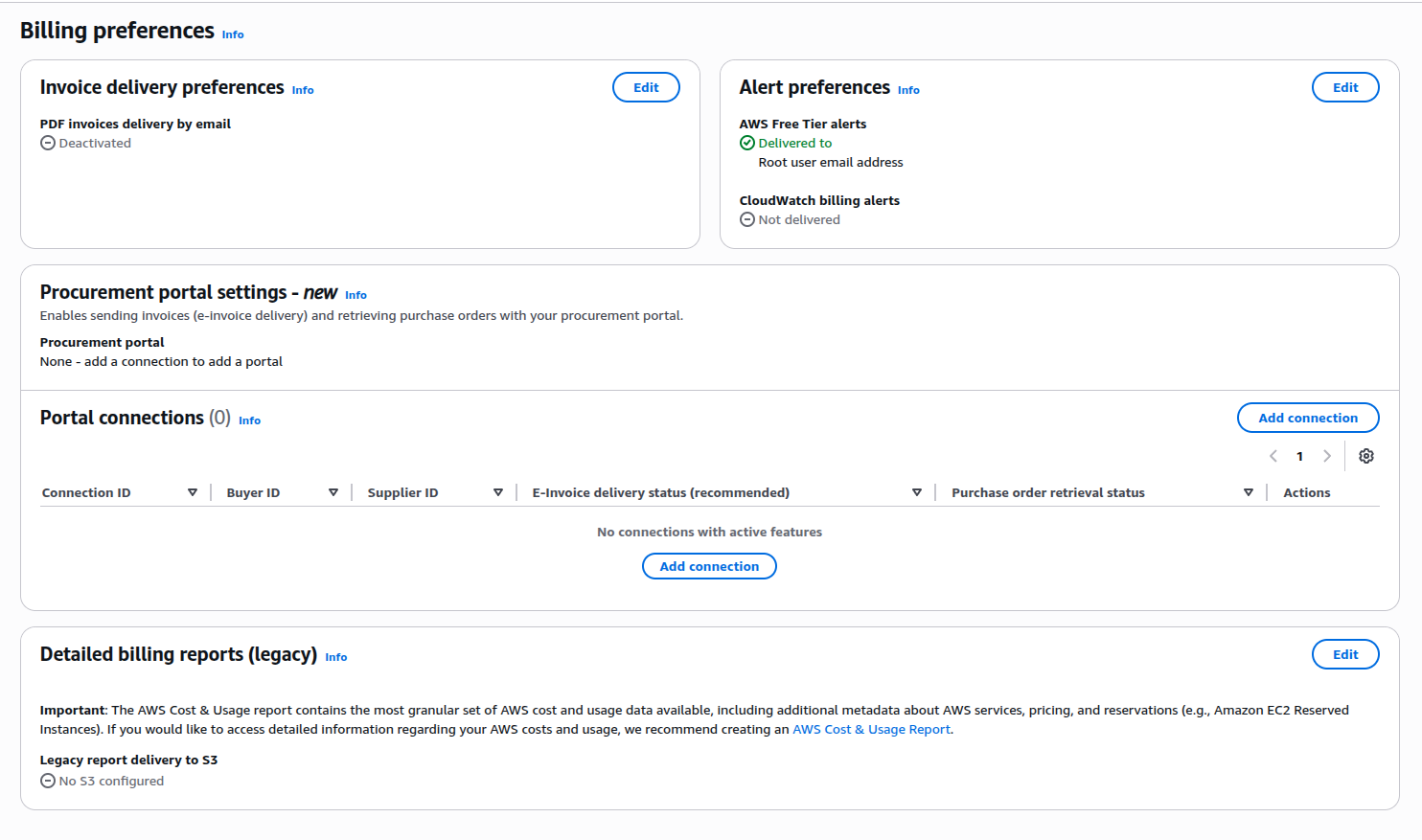
Click “Edit” in Alert Preferences section
Check “Receive CloudWatch Billing Alerts”
Click “Update”
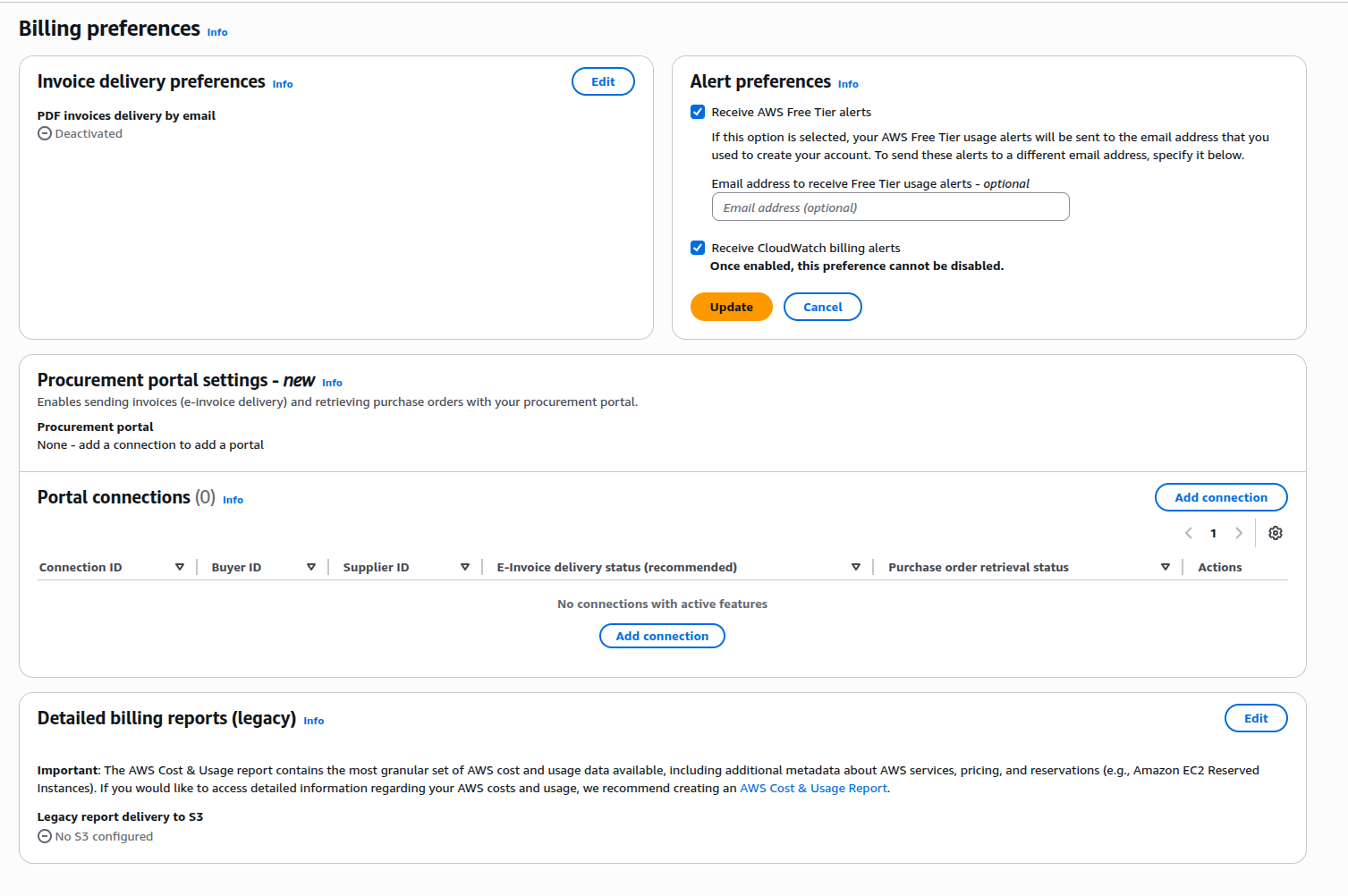
IMPORTANT
This setting cannot be disabled after enabling
Data will appear in 15 minutes
STEP 2: GO TO CLOUDWATCH
CRITICAL – REGION
Billing Alarms work ONLY in US East (N. Virginia) region
If you are in another region (Frankfurt, London):
1. Click on region name in upper right corner
2. Select “US East (N. Virginia)”

Billing alarm will work for entire account regardless of region
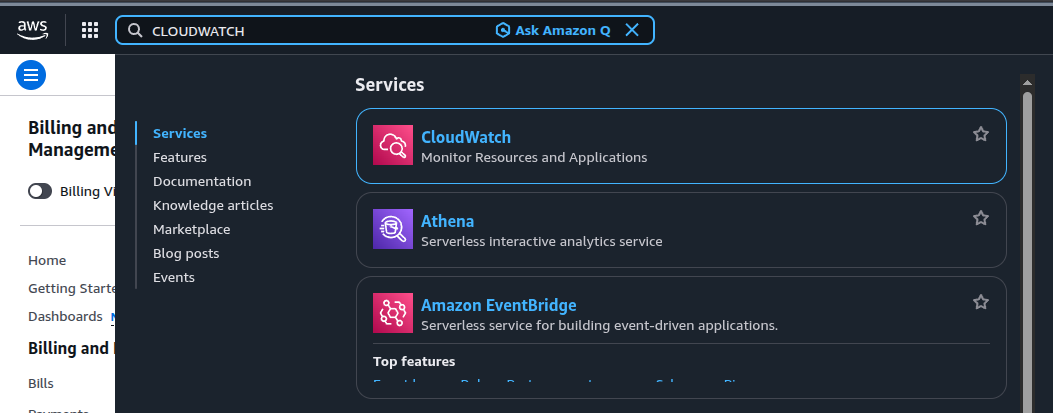
OPEN CLOUDWATCH
In AWS search enter “CloudWatch”
Click on CloudWatch
STEP 3: CREATE ALARM
In left menu select “Alarms”
SELECT METRIC
Select “Billing”
If you don’t see Billing:
– Check that Billing Alerts are enabled
– Check you are in US East (N. Virginia) region
– Wait 15 minutes after enabling
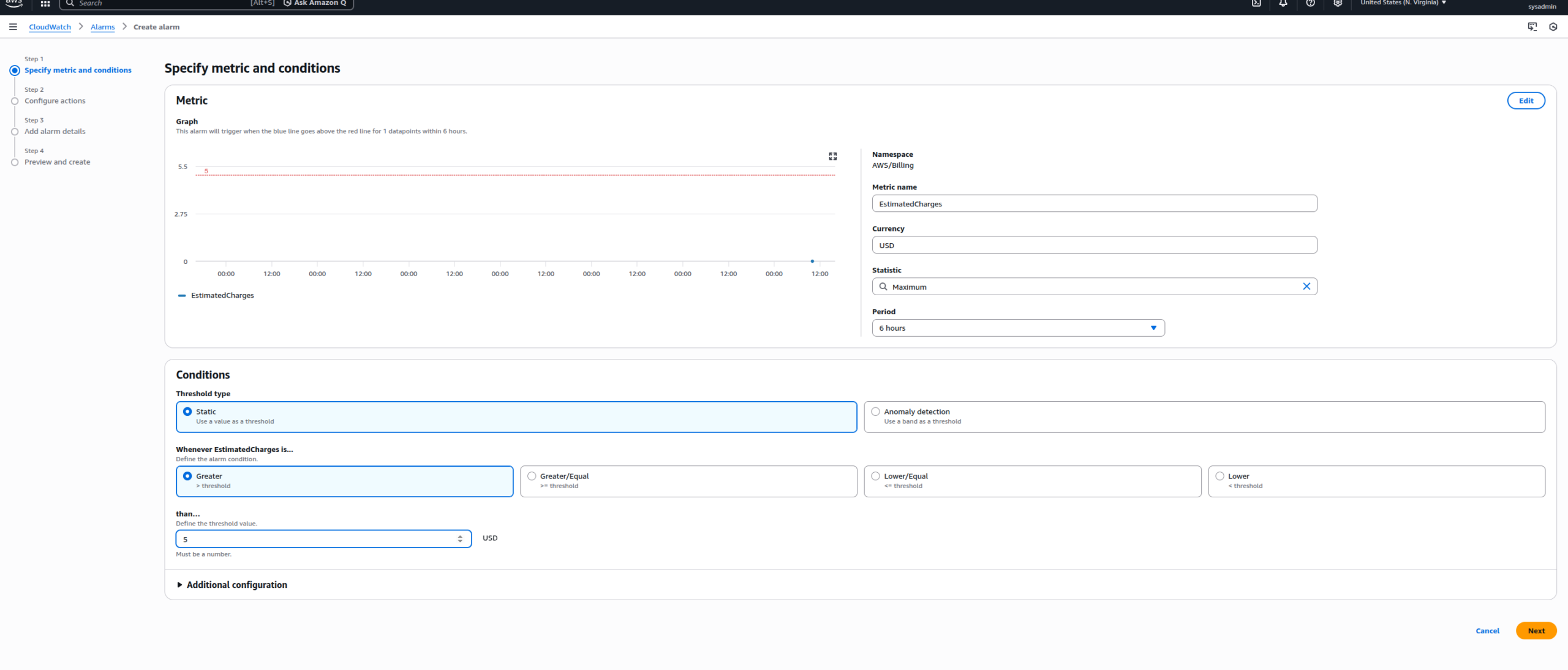
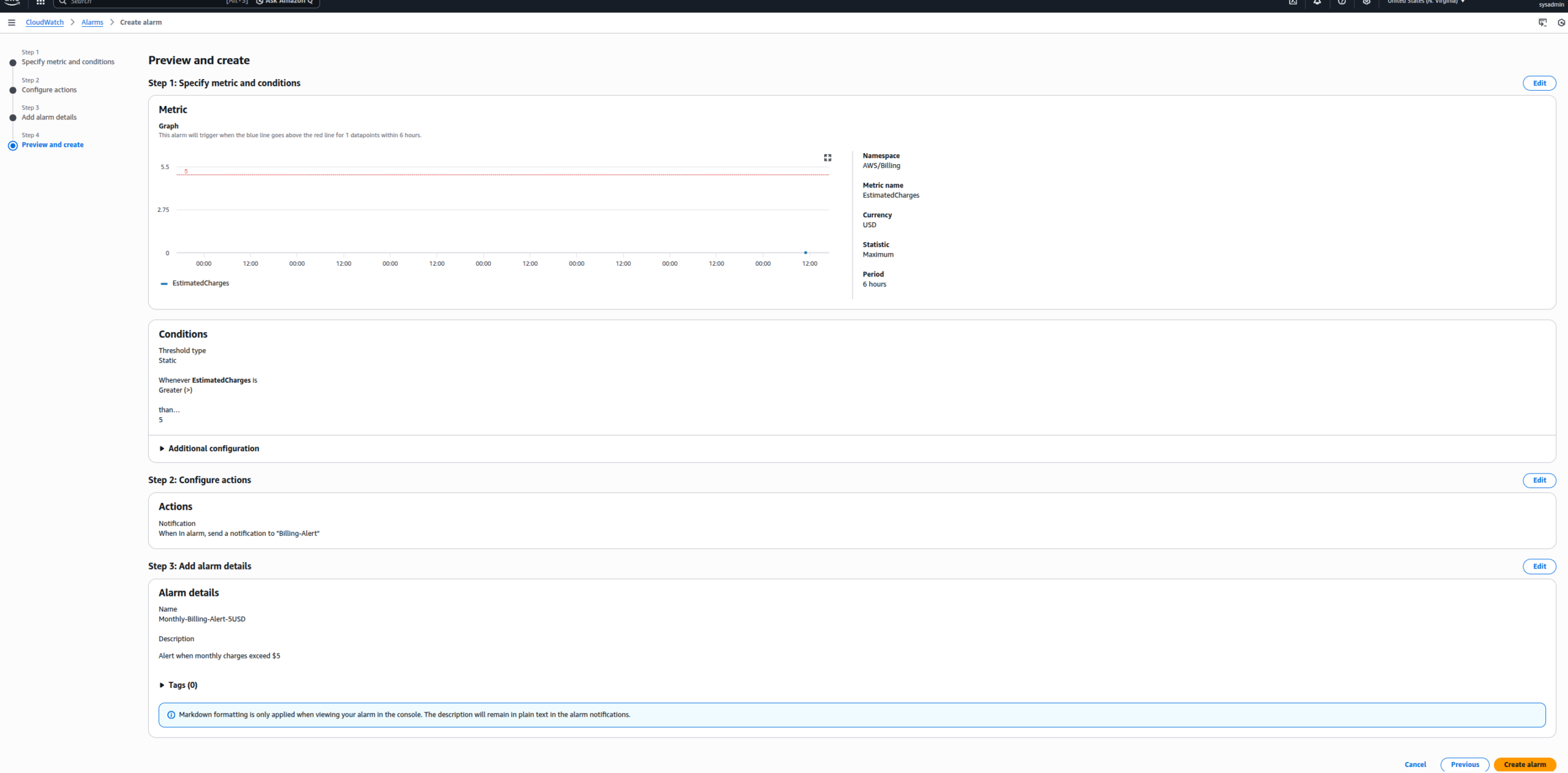
CONFIGURE CONDITIONS
Metric name: EstimatedCharges
Statistic: Maximum
Period: 6 hours
Conditions:
– Threshold type: Static
– Whenever EstimatedCharges is: Greater (>)
– than: 5 (your limit in dollars)
This means: if bill exceeds $5, send notification
STEP 4: CONFIGURE NOTIFICATIONS
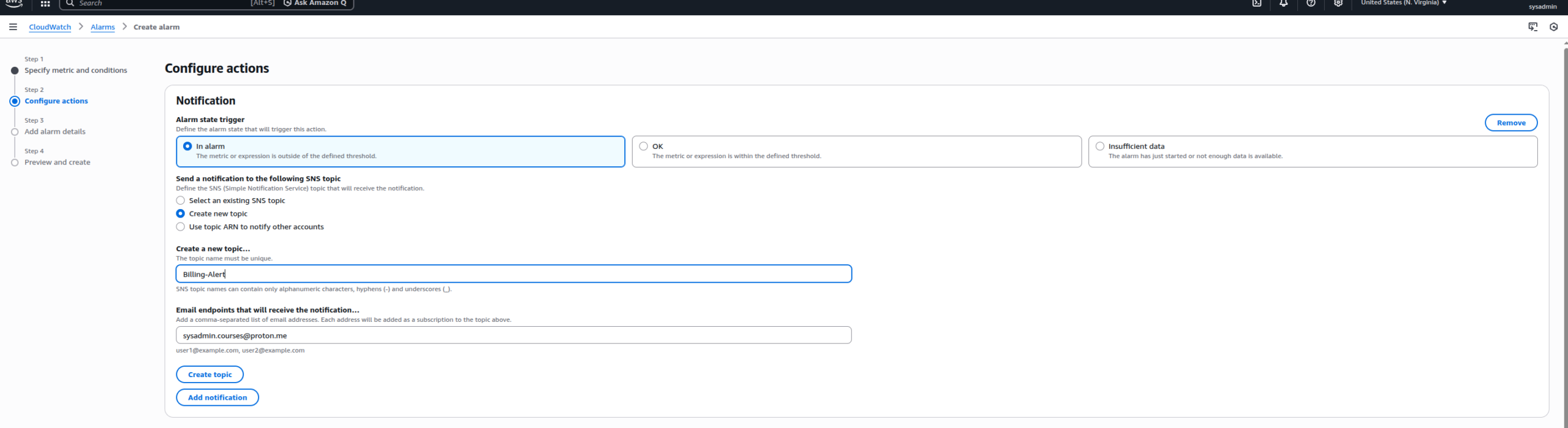
CREATE SNS TOPIC
In alarm state: select “In alarm”
Select an SNS topic:
– Create new topic
Topic name: Billing-Alert
Email endpoints:
Enter your email address
Click “Create topic”
WHAT WILL HAPPEN
AWS will send you confirmation email
You MUST click “Confirm subscription” in email
Only after this will you receive notifications
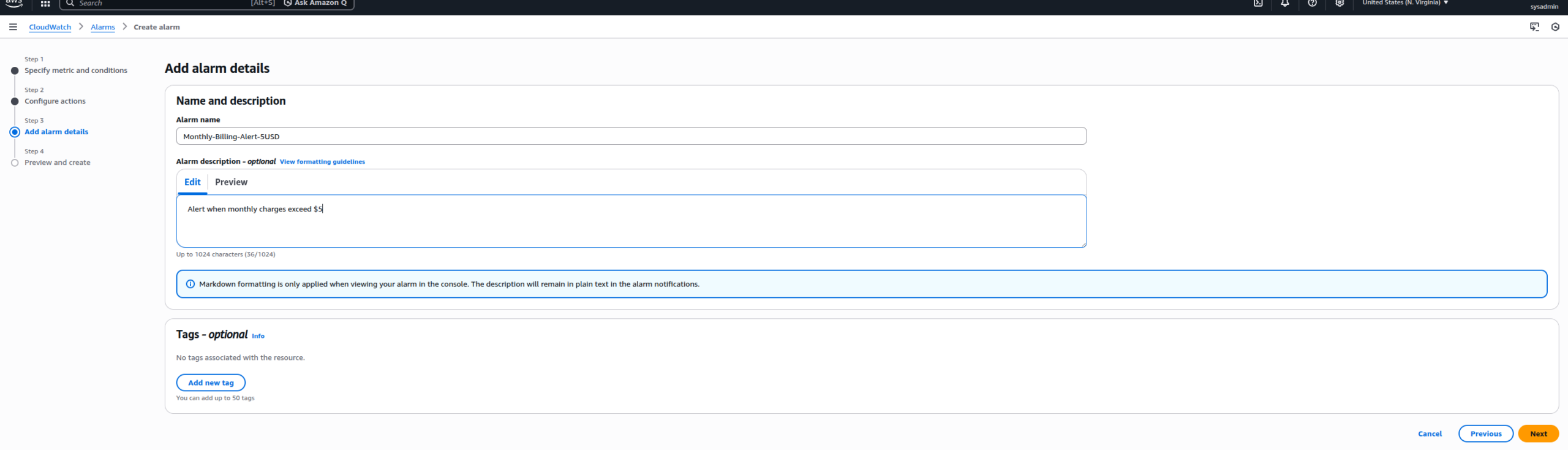
STEP 5: NAME ALARM
Name: Monthly-Billing-Alert-5USD
Description: Alert when monthly charges exceed $5
Click “Next”
Review settings
Click “Create alarm”
EMAIL CONFIRMATION
OPEN EMAIL
Subject: “AWS Notification – Subscription Confirmation”
From: [email protected]
CLICK
“Confirm subscription”
ALARM STATUS
First: INSUFFICIENT_DATA (not enough data)
After 5-10 minutes: OK (everything is fine)
If exceeds $5: ALARM (alert)
HOW BILLING ALARM WORKS
MONITORING
CloudWatch checks EstimatedCharges every 6 hours
Compares with your threshold ($5)
IF COSTS < $5
Status: OK (green)
No notifications
IF COSTS ≥ $5
Status: ALARM (red)
Sends email to your address
You receive warning
WHAT TO DO WHEN RECEIVING ALARM
Go to Billing Dashboard
Check Bills for current month
Find service with maximum costs
Go to console for that service
Stop or delete resources
MODIFYING BILLING ALARM
WHEN NEEDED
Want to increase limit from $5 to $10
Want to decrease limit to $3
HOW TO MODIFY
CloudWatch → Alarms
Select your alarm
Actions → Edit
Change threshold from $5 to new value
Save changes
Do NOT need to confirm email again
DELETING BILLING ALARM
CloudWatch → Alarms
Select alarm
Actions → Delete
Confirm deletion
IMPORTANT TIPS
CHECK REGULARLY
Go to Billing Dashboard once a week
Check for unexpected costs
Look at forecast for end of month
ALWAYS DELETE RESOURCES
After each lesson check:
– EC2 Instances (Terminate)
– Load Balancers (Delete)
– RDS Databases (Delete)
– EBS Volumes (Delete)
– Elastic IPs (Release)
ESPECIALLY DANGEROUS SERVICES
RDS (databases) – expensive
Load Balancers – $18/month each
Elastic IPs without instance – paid
NAT Gateway – very expensive
RECOMMENDED LIMITS
For learning: $5-10
For small projects: $50-100
For companies: $1000+
MULTIPLE ALARMS
Can create multiple alarms:
– $5 – first warning
– $20 – second warning
– $50 – critical warning
FREE TIER ALERTS
In Billing Preferences also enable:
“Receive Free Tier Usage Alerts”
This warns when using 85% of Free Tier limits
COMMON MISTAKES
MISTAKE 1: DID NOT ENABLE BILLING ALERTS
Solution: Billing Preferences → Enable alerts
MISTAKE 2: WRONG REGION
Solution: Switch to US East (N. Virginia)
MISTAKE 3: DID NOT CONFIRM EMAIL
Solution: Find email from AWS and click Confirm
MISTAKE 4: FORGOT TO DELETE RESOURCES
Solution: After each lesson check all regions
CHECK YOURSELF
1. Where to view detailed bill for month?
2. In which region are Billing Alarms created?
3. What to do after creating SNS topic?
4. What does INSUFFICIENT_DATA status mean?
5. How to change threshold of existing alarm?
6. Which services are most expensive?
7. How many Free Tier hours for t2.micro?
8. What to do when receiving Billing Alarm?
9. Can you create multiple Billing Alarms?
10. What are Free Tier Usage Alerts?
CONCLUSIONS
Billing Alarms – critically important protection against unexpected costs
Always create alarm IMMEDIATELY after AWS account registration
Regularly check Billing Dashboard
Always delete resources after experiments
Billing Alarms work only in US East (N. Virginia) region
Must confirm email subscription
Recommended limit for learning: $5-10
Load Balancers and RDS – most expensive services for beginners
Free Tier has limits – monitor them
Check bills weekly
Next lesson: Amazon S3 – object storage for files.
